
Chromecast Amazon Prime Instant Video how to
Chromecast Amazon Prime Instant Videos
Many people who have purchased Google’s Chromecast device have wanted to Chromecast Amazon Prime Instant Videos to their TV. Since Amazon doesn’t officially support Google’s Chromecast API, people will need to Chromecast Amazon Prime videos using the Google Chrome web browser and the Google Cast extension. Click here to see how to cast Vimeo videos.
UPDATE – To Chromecast Amazon Prime videos from Android, click here.
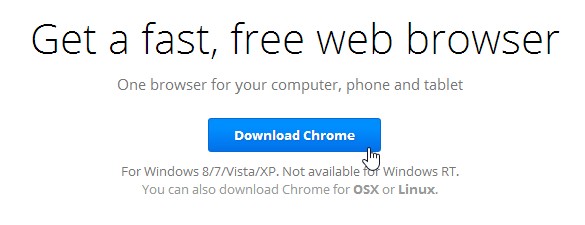
Step 1: Download and Install Google Chrome
If you already have Chrome installed, continue to step 2. You should already be using Chrome anyways, but if you aren’t, then go to the following website https://www.google.com/chrome to download and install Chrome.
Step 2 – Installing the Google Cast extension
Update 6/11/2017
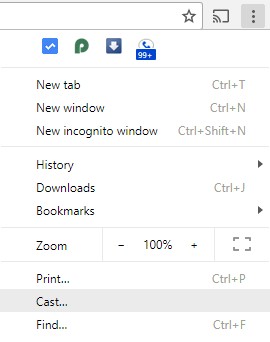
If you have the most recent version of Chrome, you no longer need the Google Cast extension although you can still use it. Simply click on the 3 dots in the upper right hand corner of Chrome and click the cast link. Skip the rest of step 2 if you have this option.
End Update
After you have downloaded and installed Google Chrome, open up Chrome and go to the following link to download the Google Cast extension. Click the Add to Chrome button. This will install the Google Cast extension to your Chrome browser. You are almost ready to Chromecast Amazon Prime videos! Note: this may require signing into your Chrome browser with a Google account. Google Cast extension

Step 3 – Enable Adobe Flash in your Amazon Prime Settings
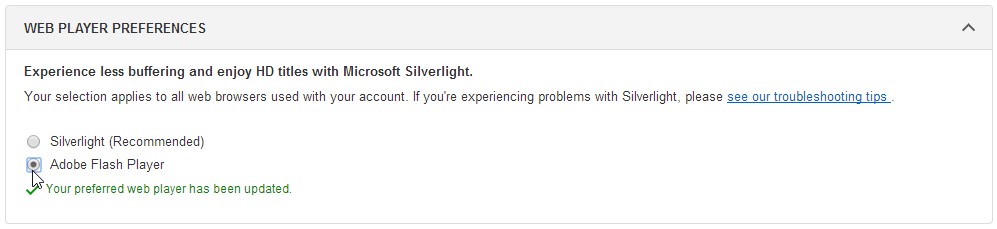
In order to smoothly cast videos to your TV, you will need to make sure that you are steaming videos through Amazon Prime using Adobe Flash. By default, all videos are streamed using Microsoft Silverlight.
Log into your Amazon Prime account here, then go to the settings page.

Scroll down until you see the option for WEB PLAYER PREFERENCES. Select Adobe Flash Player. The change will save as soon as you click Adobe Flash Player.
Step 4 – Casting your Chrome browser tab
Installing the Google Cast extension will give you the ability to cast your active Chrome browser tab to your Chromecast. This will work for viewing web pages other than just Amazon Instant Videos. You can cast Vimeo and other video sites as well.
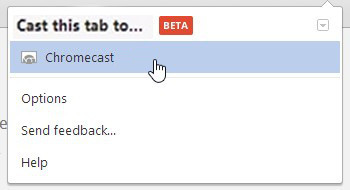
Click the little cast icon (shown below) in the upper right corner to start casting your Chrome browser tab to your Chromecast. After you have verified that your current Chrome tab is being cast to your TV, you are now ready to Chromecast Amazon Prime videos. Browse to the Amazon Instant Video website and try watching a movie or TV show. If everything is working, then you are all set! If not, see below for some additional tips.

Note: Once you click on the cast logo, you will have the option to select your Chromecast Device!
If you are having a hard time following the steps above, please watch the following video.
Troubleshooting
Disable Silverlight
The most common problem when trying to Chromecast Amazon Prime videos is that you need to configure your web browser to use Adobe flash to play the video. Please see my guide here on how to disable Microsoft Silverlight and enable Adobe Flash.
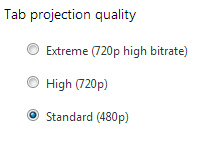
Lower the quality
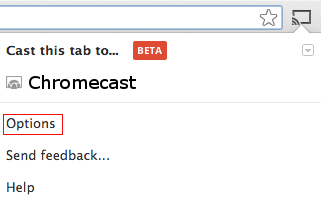
Click the Chromecast icon and select options
Select Standard quality
Pink screen of death
In the rare occasion your TV only shows a pink screen after you begin casting your Chrome tab, click here for the fix.


If I use this with Chromecast, does the closed captions show?
Yes. You just need to enable them like normal.
Be aware that this “fix” is not really great for watching videos. The result is very choppy. Unless Amazon comes out with an app for it, I’m afraid I will have to exchange the Chromecast for a Roku or FireTV.
Did you try disabling Silverlight? The video might be choppy if your wireless connection to the Chromecast isn’t very good. Every time I have done this, it works fine for me. Unfortunately I don’t think Amazon will ever release an Instant Video app that supports the Chromecast…that’s why I made this page to give people a few alternatives: http://chromecasthelp.net/chromecast-amazon-prime-alternatives/
It matters greatly whether your PC/laptop’s WiFi speed is good enough and I would suspect the amount of RAM you have available would also be an issue. My wife’s laptop streams Amazon Videos via Chromecast flawlessly but mine is stuttery and choppy. She has a higher quality laptop.
This is not user friendly and sounds like it would be unreliable or poor quality. Avoiding this kind of thing is why I liked the chromecast in the first place. The very attraction of the device is there is no configuration, and little to go wrong. So I’m afraid I won’t be using amazon prime instant video, and will stick to chromecast compatible services.
Using Chrome on Mac OS there are no Web Player Preference settings available 🙁
Options aren’t available using Chrome on my Android phone either 🙁 🙁
You won’t have this option on your Android phone. I just checked and I still have the option, but I am using Windows. Have you tried uninstalling Silverlight to see if that works for you?
The tab is just casting fine, but I am unable to go into full-screen mode (which, I guess, I can deal with), but the sound is also still coming through the laptop. Is that normal as well, or am I missing something? Thanks!
Can I cast from my Iphone?
Currently not possible.
too bad…Any idea if they will make some app?
Thank you! Worked perfectly for me.
When I googlecast anything the audio stays on my laptop – video on TV, but no audio – can’t find any settings to correct this. Is there an update or something that I’m missing?
Hi Michelle. I’ve heard of people having this issue a long time ago…but not recently. The Chromecast will automatically update itself so there is nothing to worry about there. I would make sure you Chrome browser is up to date. If that doesn’t work, I would try a complete uninstall and re-install of Chrome. Have you tried casting from another PC?
To Chromecast Amazon Prime TV videos to your TV, just do the following: (1) update to the latest Chromecast Android app and open it, (2) use/enable the Cast Screen option to cast your active screen to the TV from within the Chromecast App, (3) Switch to your Amazon Prime Instant Video app, (4) Play your show or movie. This is how we are doing it, and it seems to be working pretty good from my wife’s Samsung Galaxy Note 3.
This is a workaround, not a solution, not chrome “cast.” First, Chrome for iPad and iPhone does not have the cast button. Second, the image is rendered twice, once on the PC and once on the TV. The rendering on the PC is such that one really needs to single task.
This article discusses mirroring and not casting. Huge difference in quality between these two ways of getting video to the chromecast. Still on the hunt for a solution that will cast flash videos years later …..