Chromecast Amazon Prime Instant Videos
Many people who have purchased Google’s Chromecast device have wanted to Chromecast Amazon Prime Instant Videos to their TV. Since Amazon doesn’t officially support Google’s Chromecast API, people will need to Chromecast Amazon Prime videos using the Google Chrome web browser and the Google Cast extension. Click here to see how to cast Vimeo videos.
UPDATE – To Chromecast Amazon Prime videos from Android, click here.
Step 1: Download and Install Google Chrome
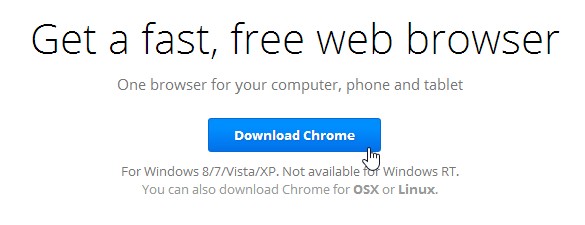
If you already have Chrome installed, continue to step 2. You should already be using Chrome anyways, but if you aren’t, then go to the following website https://www.google.com/chrome to download and install Chrome.
Step 2 – Installing the Google Cast extension
Update 6/11/2017
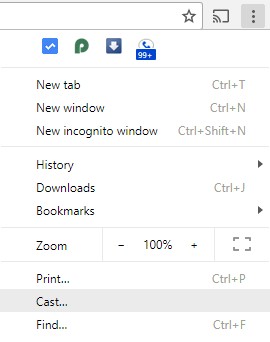
If you have the most recent version of Chrome, you no longer need the Google Cast extension although you can still use it. Simply click on the 3 dots in the upper right hand corner of Chrome and click the cast link. Skip the rest of step 2 if you have this option.
End Update
After you have downloaded and installed Google Chrome, open up Chrome and go to the following link to download the Google Cast extension. Click the Add to Chrome button. This will install the Google Cast extension to your Chrome browser. You are almost ready to Chromecast Amazon Prime videos! Note: this may require signing into your Chrome browser with a Google account. Google Cast extension

Step 3 – Enable Adobe Flash in your Amazon Prime Settings
In order to smoothly cast videos to your TV, you will need to make sure that you are steaming videos through Amazon Prime using Adobe Flash. By default, all videos are streamed using Microsoft Silverlight.
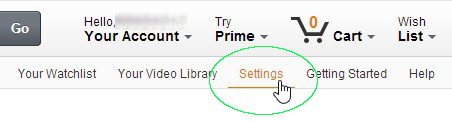
Log into your Amazon Prime account here, then go to the settings page.
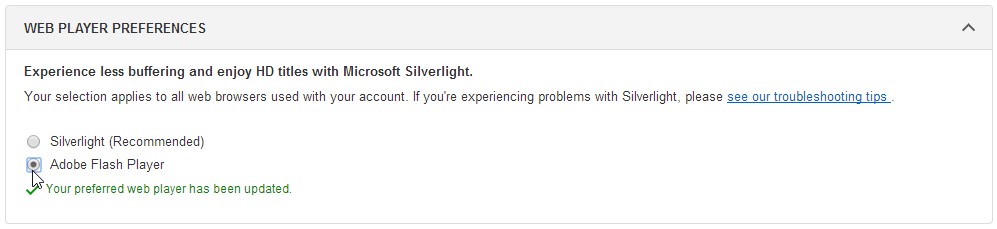
Scroll down until you see the option for WEB PLAYER PREFERENCES. Select Adobe Flash Player. The change will save as soon as you click Adobe Flash Player.
Step 4 – Casting your Chrome browser tab
Installing the Google Cast extension will give you the ability to cast your active Chrome browser tab to your Chromecast. This will work for viewing web pages other than just Amazon Instant Videos. You can cast Vimeo and other video sites as well.
Click the little cast icon (shown below) in the upper right corner to start casting your Chrome browser tab to your Chromecast. After you have verified that your current Chrome tab is being cast to your TV, you are now ready to Chromecast Amazon Prime videos. Browse to the Amazon Instant Video website and try watching a movie or TV show. If everything is working, then you are all set! If not, see below for some additional tips.

Note: Once you click on the cast logo, you will have the option to select your Chromecast Device!
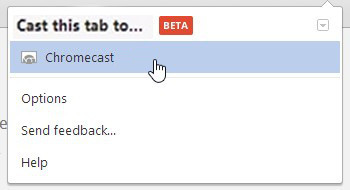
If you are having a hard time following the steps above, please watch the following video.
Troubleshooting
Disable Silverlight
The most common problem when trying to Chromecast Amazon Prime videos is that you need to configure your web browser to use Adobe flash to play the video. Please see my guide here on how to disable Microsoft Silverlight and enable Adobe Flash.
Lower the quality
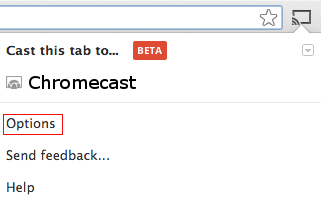
Click the Chromecast icon and select options
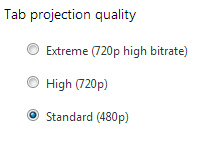
Select Standard quality
Pink screen of death
In the rare occasion your TV only shows a pink screen after you begin casting your Chrome tab, click here for the fix.